Simple workflow · 7 steps · about 25 sec
Renew last year’s contract in two minutes
Last year’s terms become this year’s agreement in a few clicks.
Retainers come up for renewal every year. Duplicate last year’s signed agreement, rename it, update the term and add the client. The copy is a fresh draft, the original stays signed and untouched, and both years sit side by side in your documents.
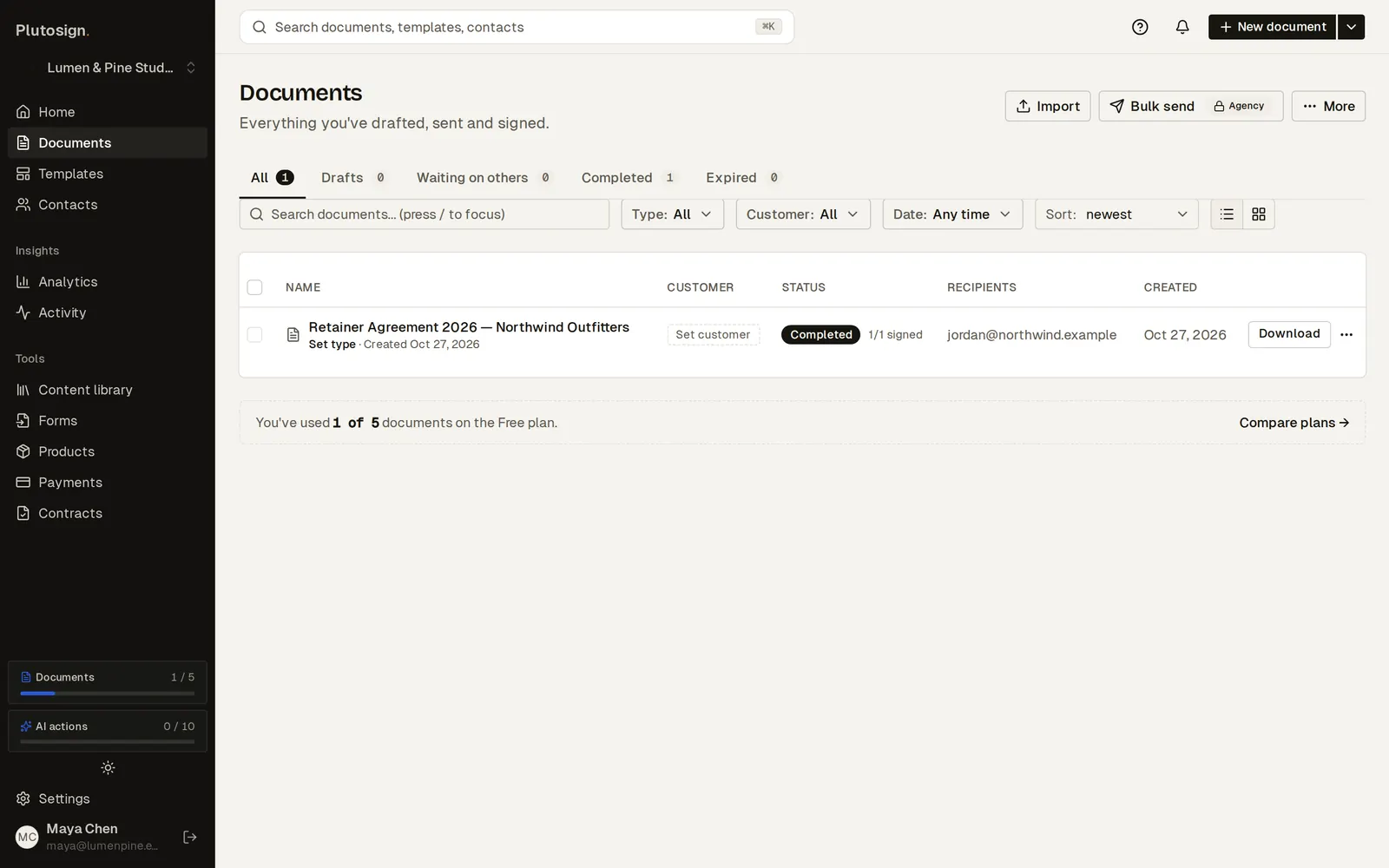
Step 1 of 7Last year's retainer is signed and filed under your documents.
Real Plutosign screens with sample people and companies. Use the arrow keys, swipe, or press Autoplay to watch.
Every step
The same walkthrough as text, screen by screen.
- 01
Find last year's contract
Last year's retainer is signed and filed under your documents.
On a computer
- 02
Duplicate it
Duplicate it. The terms, pricing and layout come with the copy.
On a computer
- 03
Open the copy
The copy opens as a new draft. Signatures and signer details stay with the original.
On a computer
- 04
Update the year
Rename it and update the term. Change anything else that moved on.
On a computer
- 05
Add the client
Add this year's signer and send the renewal.
On a computer
- 06
Your client signs this year's agreement on their phone.
On a phone
- 07
Both years on file
The 2027 agreement is completed, right next to 2026.
On a computer
Related workflows
See all workflows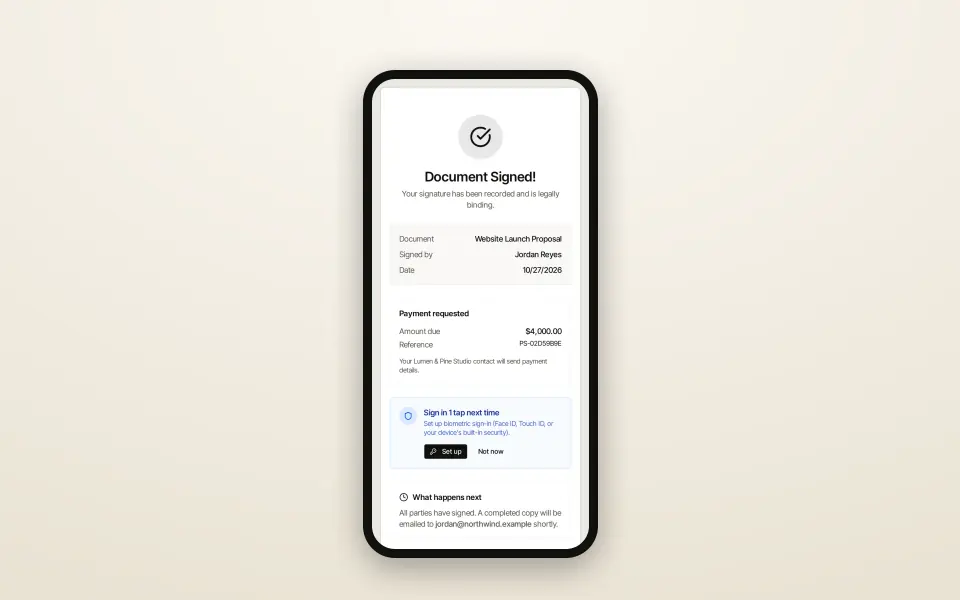 8 steps · about 30 secSimple
Send a proposal and get it signed
From template to signed PDF without leaving the browser.
Go from a template to a signed proposal, with your client signing on their phone.
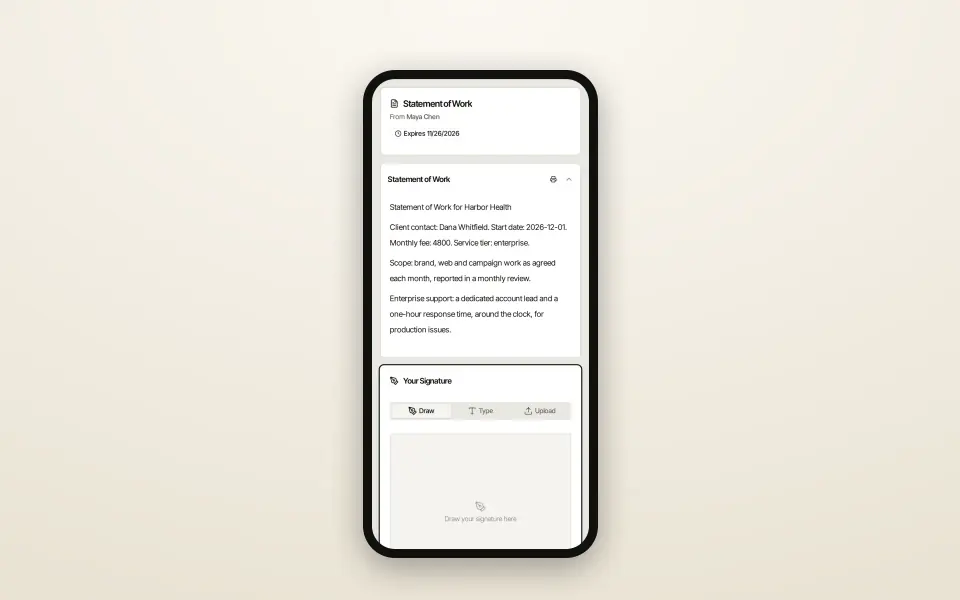 6 steps · about 20 secComplex
One SOW template, the right clauses for each client
Every client gets exactly the clauses that apply to them.
One template with conditional sections: each client sees only the clauses for their tier.
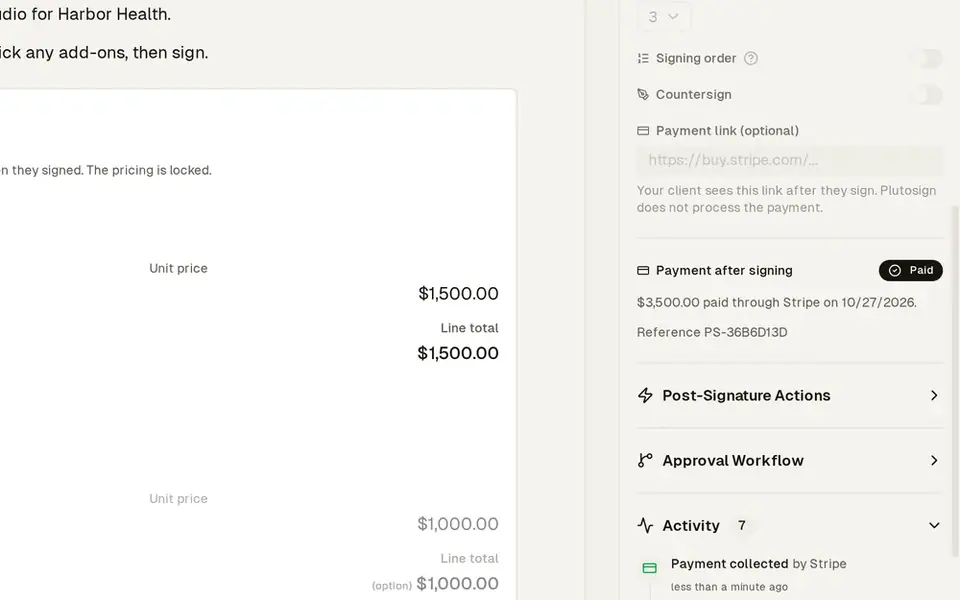 8 steps · about 30 secComplex
Quote where the client picks a package and add-ons
The client builds their own deal, then pays you directly.
Send one quote. The client picks a package and extras, and sees the totals update.
Try this workflow with your own documents.
No credit card required.